
Profile Audio
Manage background music tracks and audio player loop/autoplay settings
Profile Audio
Manage your profile audio under Profile Audio ↗.
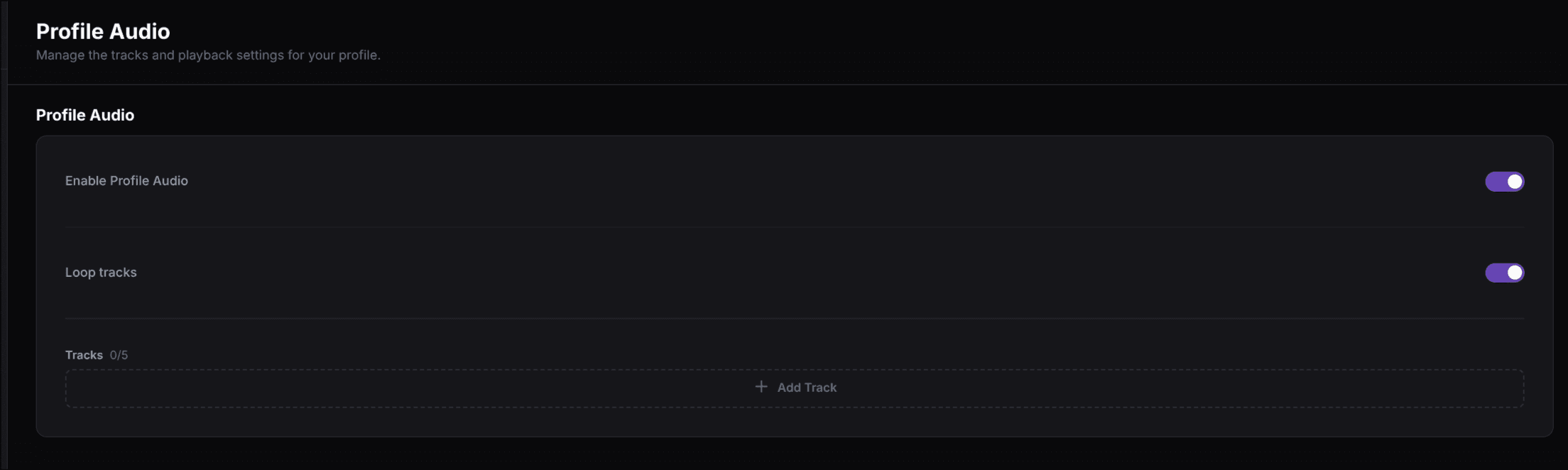
Profile Audio is a small playlist for your profile. Visitors can listen through the profile audio player, including the Audio Player card when you add it to your grid.
What you can control
Enable Profile Audio
Turn profile audio on or off.
Loop tracks
Continue from the first track after the playlist ends.
Selected track
Choose which uploaded track is the default track.
Track library
Upload, select, and remove your profile tracks.
Add a track
Open Profile Audio
Go to Settings => Profile Audio.
Upload an audio file
Click Add Track and choose an audio file. The uploader accepts common formats including
.mp3, .ogg, .wav, .flac, and .m4a.
Select the default track
Click Select beside a track to make it the selected track. The selected row is marked in the track list and is used when profile audio starts.
Save your profile settings
Turn on Enable Profile Audio, choose whether tracks should loop, and save the settings from the settings page.
Track limits
The number of tracks you can keep depends on your plan. The current count and limit appear beside Tracks on the page. See Premium features ↗ for the current plan limits.
Browser autoplay
Modern browsers usually block audio from playing automatically until a visitor interacts with the page. Add an Audio Player card so visitors have an obvious playback control.