
Cursor
Change your cursor and add playful trail effects to your profile
Cursor
Customize how the cursor looks on your public profile under Cursor ↗.
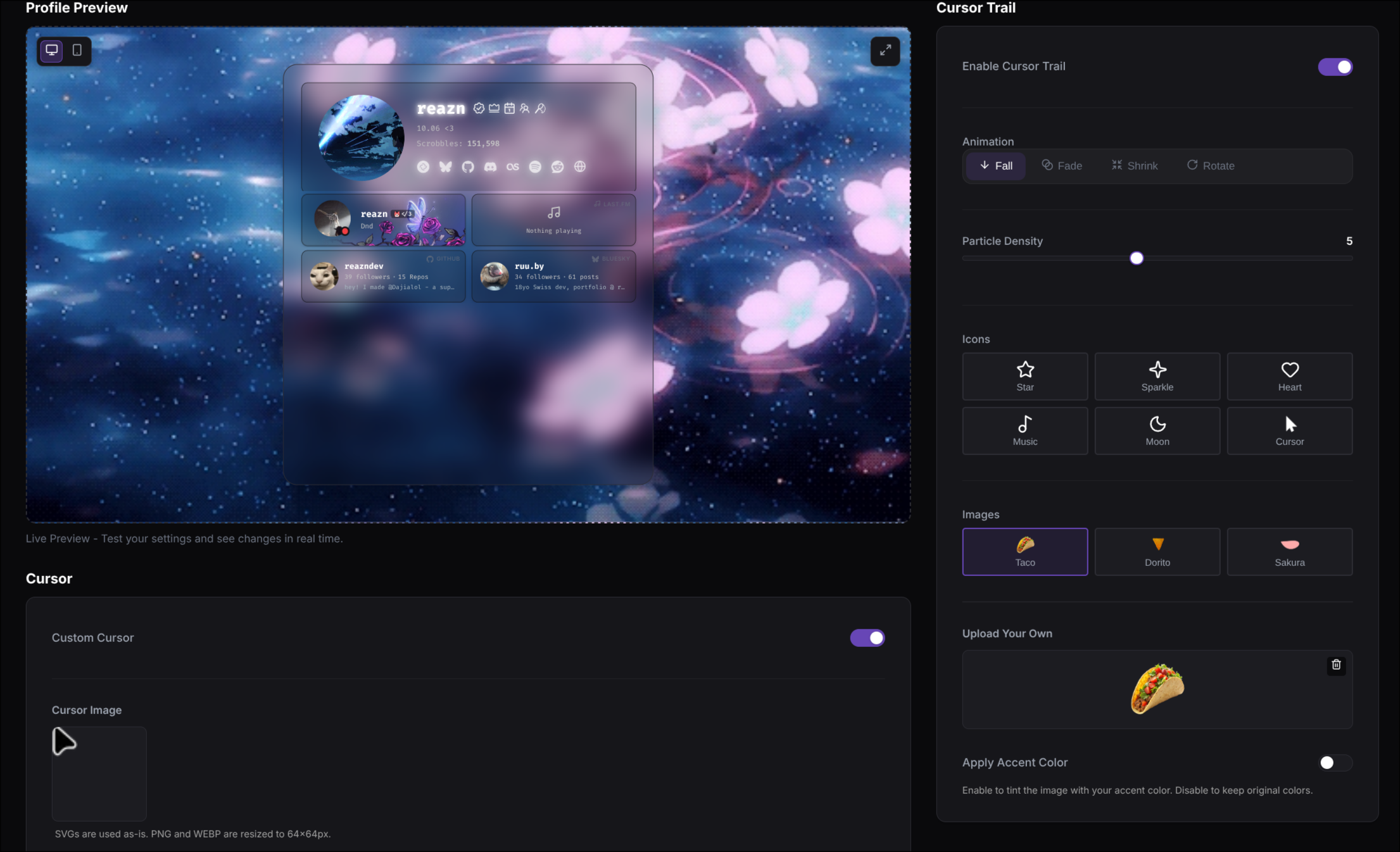
Use the preview to test how your cursor and trail feel together before you save.
What you can change
Custom Cursor
Replace the standard pointer with your own cursor image.
Cursor Trail
Add floating icons or images that follow the cursor.
Animation & Density
Control how the trail moves and how intense it feels.
Built-in or uploaded visuals
Choose from preset icons and images, or upload your own.
A simple way to set it up
Decide if you want a custom cursor
Turn on Custom Cursor if you want to replace the normal pointer with your own image.
If you leave it off, your profile keeps the standard cursor.
Choose a cursor image
Click the Cursor Image area to select your cursor asset. The preview shows how it will look on your profile.
Turn on Cursor Trail if you want extra movement
Enable Cursor Trail to add floating shapes or images behind the cursor as visitors move around your page.
Pick the feel of the trail
Choose an Animation, set the Particle Density, and then decide whether you want built-in icons, built-in images, or your own uploaded visual.
Custom Cursor
If you want your profile to feel more personal, you can replace the standard cursor with your own image.
- Turn on Custom Cursor
- Click the cursor image area to choose your cursor
- Check the preview to make sure it feels right
To use your own cursor image, upload it first in My Assets ↗ and then select it here.
Cursor Trail
Cursor Trail adds small floating visuals behind the cursor while someone moves around your profile.
You can:
- Turn Enable Cursor Trail on or off
- Choose one or more Animation styles
- Adjust Particle Density to make the effect lighter or more dramatic
- Pick from built-in Icons
- Pick from built-in Images
- Use Upload Your Own to add a custom trail visual
Apply Accent Color
If you are using an uploaded trail image, you may see an Apply Accent Color option.
- Turn it on if you want the trail to match your profile accent color
- Leave it off if you want to keep the original image colors
Built-in trail styles
The page includes ready-to-use trail visuals, so you can try different looks quickly.
- Icons are usually cleaner and simpler
- Images feel more playful and decorative
- Uploaded visuals give you the most control if you want something specific
Common cursor goals
Tips
- A custom cursor alone often feels cleaner than combining a strong cursor with a strong trail.
- Icon trails usually look neater than image trails on busy profiles.
- Test the effect against your real background and card colors in the preview before saving.