
Fonts
Pick the font style that fits your profile best
Fonts
Choose the typography used across your profile under Fonts ↗.
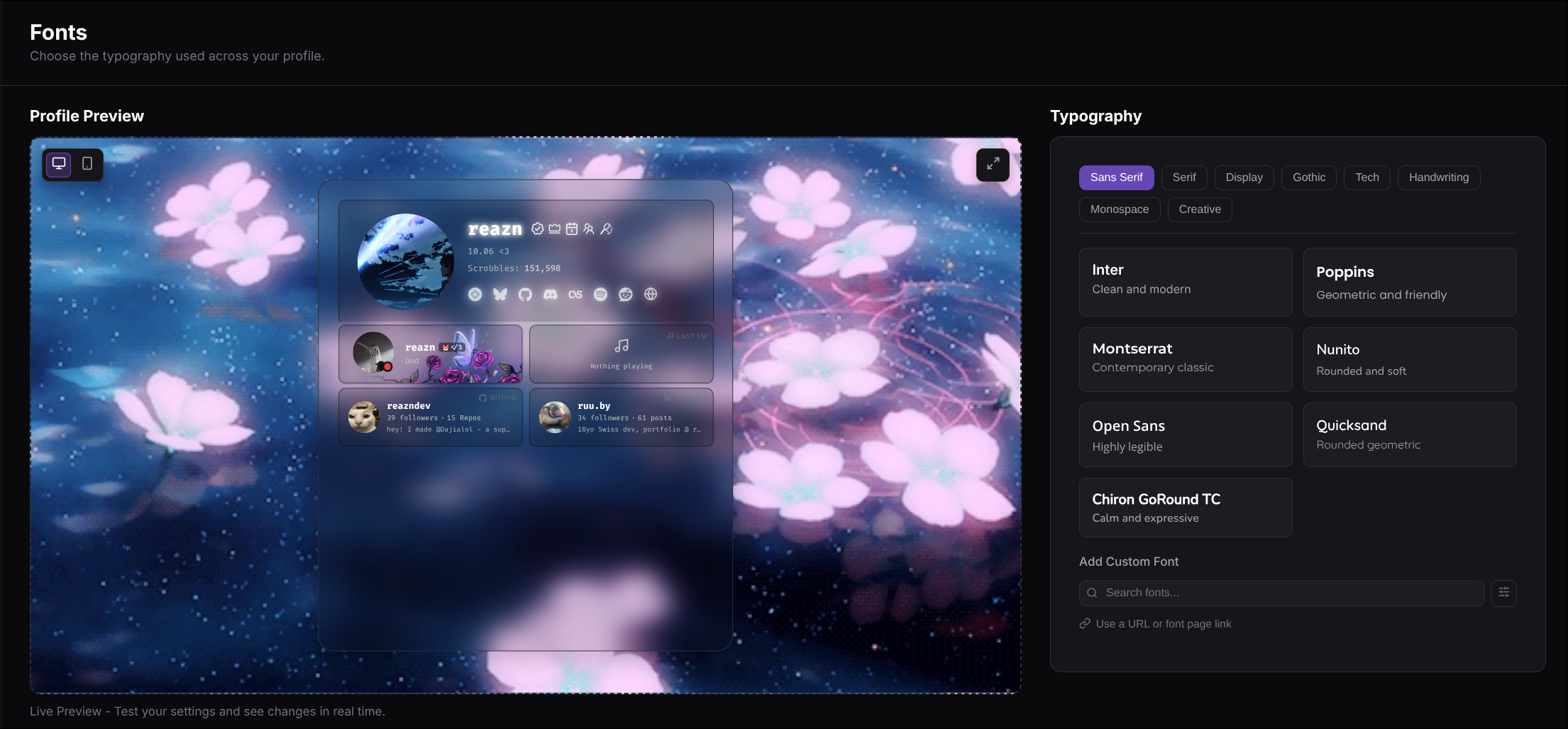
The preview updates as you switch fonts, so you can compare styles before you save.
What you can do here
Browse built-in fonts
Try ready-to-use font styles directly from the picker.
Search for more
Look up additional fonts if the built-in options are not enough.
Paste a font link
Use a Google Fonts or Bunny Fonts link if you already have one.
Preview before saving
See how headings, cards, and text feel with each font.
A simple way to choose a font
Try the built-in styles first
Browse the font picker and click any option that feels interesting. This is the fastest way to see what suits your profile.
Check the live preview
Look at your username, card titles, and body text in the preview. A font can look great in the picker but feel very different across the full profile.
Search if you want more options
If nothing feels right, use the search tool to look for more fonts. This is helpful when you already know the kind of style you want.
Use a custom font link if needed
If you already found a font elsewhere, paste its Google Fonts or Bunny Fonts link into the custom font field and preview it on your profile.
Built-in fonts
The Fonts page includes a curated set of styles you can try right away. You do not need to type anything to use them. Just click a font and check the preview.
Different styles give very different moods:
- Clean fonts feel modern and easy to read
- Display fonts feel bold and attention-grabbing
- Handwritten styles feel more personal
- Monospace and tech styles feel more digital or retro
Search for more fonts
If the built-in list is not enough, you can search for more directly from the font picker.
- Use the search box to look up fonts by name
- Search fonts from Bunny Fonts
- Search fonts from Google Fonts
- Preview the result before saving it to your profile
Add a custom font link
If you already have a font page or direct font link, you can paste it into the custom font field instead of searching manually.
- Paste a Google Fonts link
- Or paste a Bunny Fonts link
- Then preview it and save it if it fits your profile
Common font choices
Tips
- Fancy fonts work best when the rest of the profile is fairly clean.
- If your background is busy, a simpler font often looks better.
- Always check smaller text in the preview, not just headings.