
Template Store
Browse, preview, apply, and share profile templates
Template Store
Open Template Store ↗ to browse profile templates, preview how they would look on your own page, and apply them in a few clicks.
You can also star templates, revisit ones you used before, and publish your own templates for other people to use.
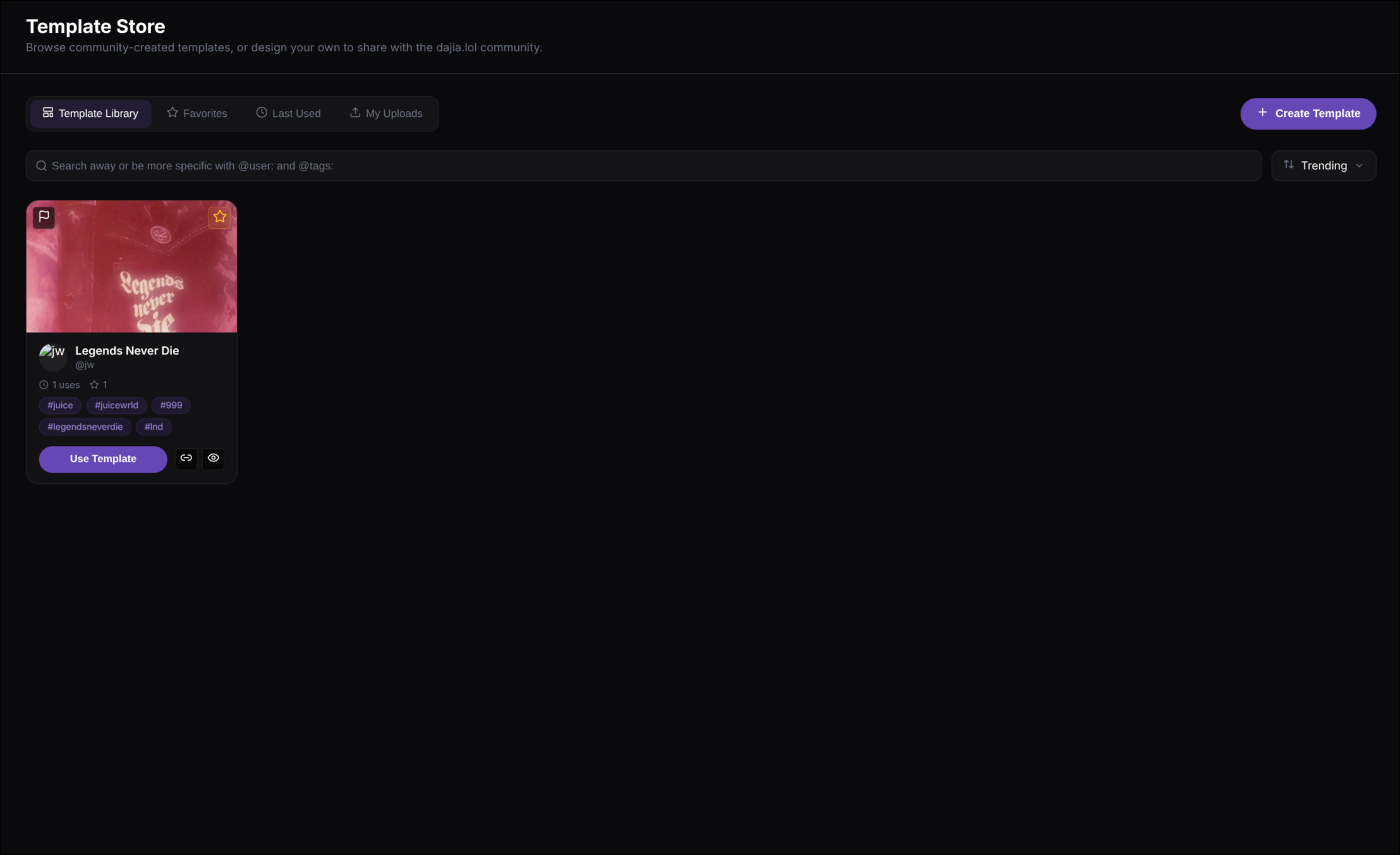
A template can be previewed on your own profile before you apply it, so you can see the style in context instead of guessing from the thumbnail alone.
What you can do here
Browse templates
Explore community-made templates in the library.
Preview on your profile
Open a live preview to see how a template would look on your own page.
Apply with one click
Use a template to update your profile layout and styling.
Save and share
Star favorites, revisit recent templates, or publish one of your own.
A simple way to use the store
Browse the library
Start in Template Library to explore public templates from other users.
Search or sort
Use the search box to narrow things down, then sort by Trending, Newest, Most Uses, or Most Stars.
Preview it on your own profile
Use Preview to open the template on your profile so you can see how it would actually look with your page.
Apply or save it for later
If you like it, click Use Template. If you are not ready yet, star it so you can find it again in Favorites.
Store sections
What it is: The main feed of public templates shared by the community.
What it is used for: Browse, search, sort, preview, star, copy, and apply templates from other users.
What it is: A saved list of templates you have starred.
What it is used for: Quickly return to templates you liked without searching for them again.
What it is: A list of templates you have used before.
What it is used for: Revisit previous looks or reapply a template you already tried.
What it is: Your own published templates.
What it is used for: Use, manage, copy, preview, or delete templates you created yourself.
What you can do with a template card
Use Template
Apply the template to your profile.
Preview
See how the template would look on your own profile before using it.
Star
Save it to your favorites.
Copy link
Copy a direct link to that template.
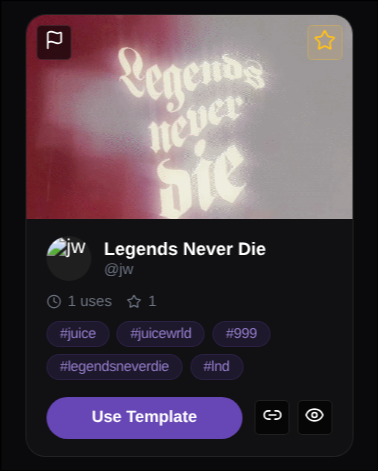
The eye icon at the bottom of the card opens the preview. Use it to see what the template would look like on your own profile before you apply it.
Creating your own template
If you want to share your current design, click Create Template in the top right corner of the page.
This opens the template creation flow, where you can turn your current profile style into a reusable template that appears in My Uploads and can be shared with other users.
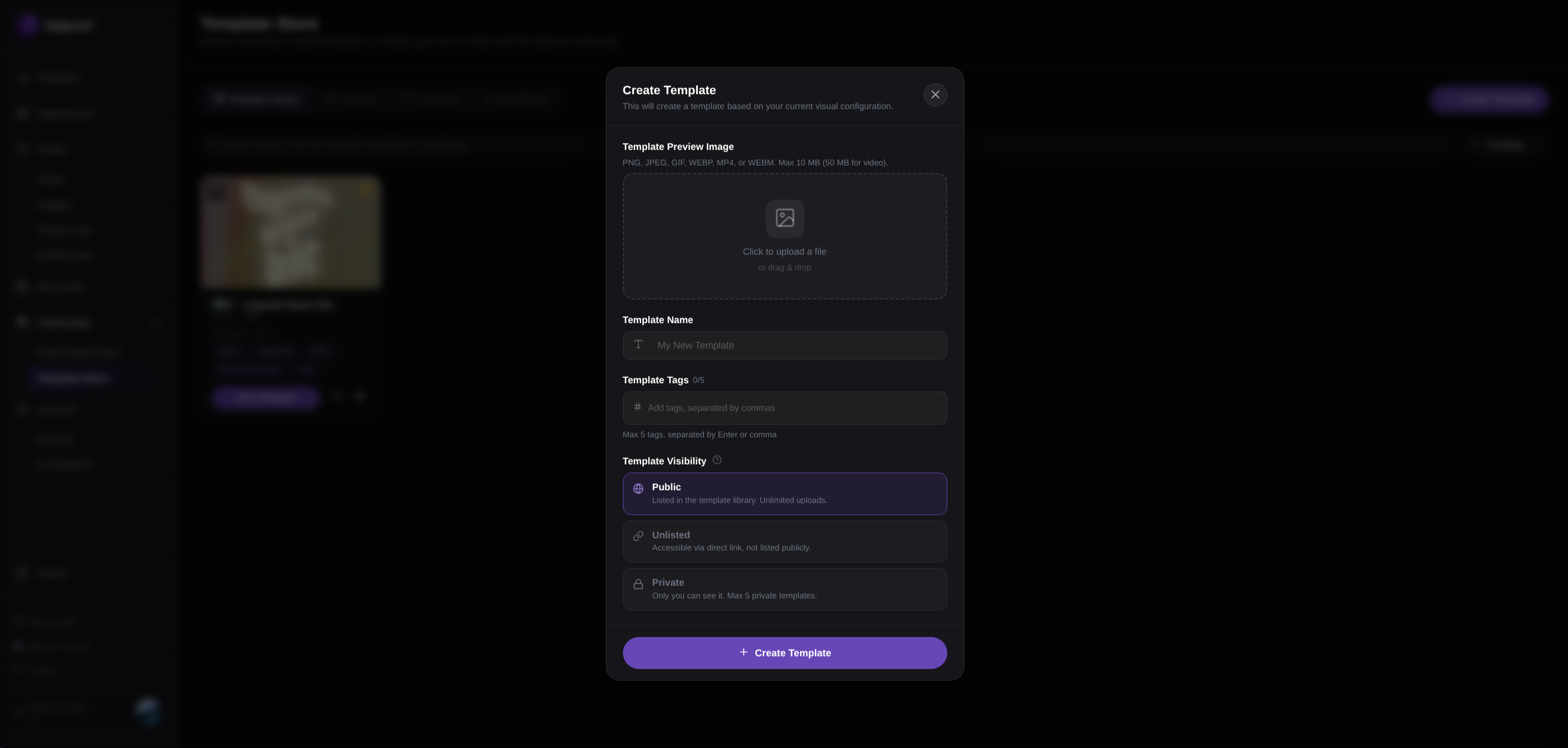
What you add when creating a template
Preview image
Upload an image or video so people can quickly see what your template looks like.
Template name
Give your template a clear name that helps people understand the style.
Tags
Add a few tags so your template is easier to discover.
Visibility
Choose whether the template is public, unlisted, or private.
What it is: A public template appears in the template library.
What it is used for: Share your design with other people so they can browse, preview, star, and use it.
What it is: An unlisted template does not appear in the public library.
What it is used for: Share the template only with people who have the direct link.
What it is: A private template is only visible to you.
What it is used for: Save your own looks for later without publishing them publicly.
Important to know
Applying a template changes the look and layout of your profile. Previewing first is the safest way to decide whether it fits your page.