
My Assets
Upload and manage avatars, backgrounds, cursors, and other profile visuals
My Assets
Open My Assets ↗ to manage the images and visuals you use across your profile.
This is your library for profile assets like avatars, backgrounds, cursors, and cursor trails.
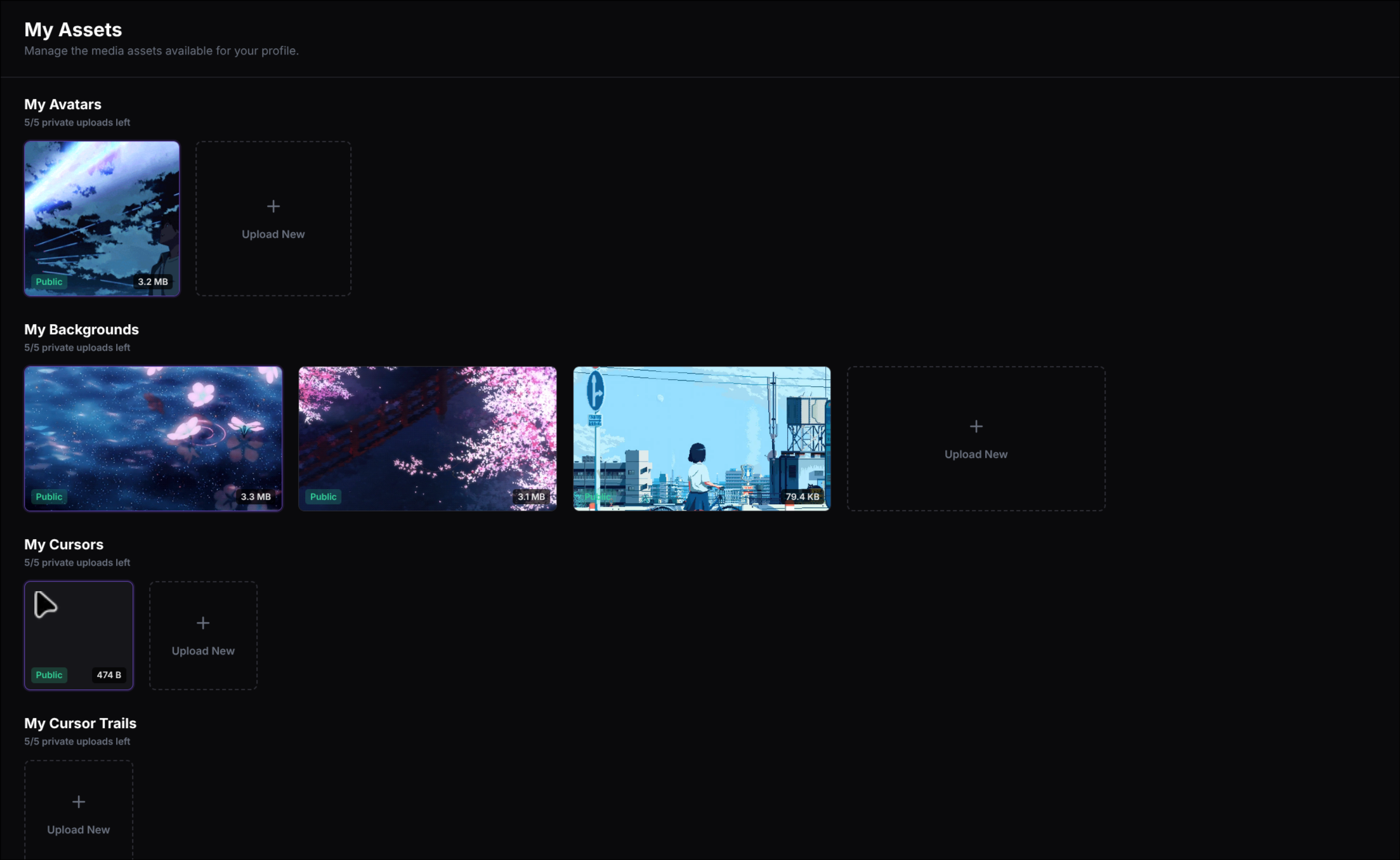
Each section shows what you already uploaded, how many private upload slots are left, and lets you upload more with the Upload New tile.
What you can do here
Upload assets
Add new avatars, backgrounds, cursors, and cursor trail images.
Equip them
Set an asset as the one currently used on your profile.
Manage visibility
Switch assets between public and private.
Organize your favorites
Star assets you want to keep easy to find.
A simple way to use My Assets
Upload what you need
Open the section you want, such as My Avatars or My Backgrounds, then click Upload New.
Hover an asset to see actions
Each uploaded item gives you quick actions like Equip, Download, Make public / private, Star, and Delete.
Equip the one you want to use
Click Equip on an asset to make it active on your profile. The active item shows an Equipped label.
Keep your library tidy
Star the assets you use most, switch visibility when needed, and remove anything you no longer want to keep.
Browse by asset type
What it is: Your avatar is your main profile picture.
Where it is used: It appears on your profile as your primary image and can also show up in cards or sections that display your profile identity.
What it is: Your background is the large image that sits behind your profile.
Where it is used: It is used on the General Styling page as your main profile background.
What it is: A cursor is a custom pointer image for your profile.
Where it is used: It is used on the Cursor settings page when you turn on Custom Cursor.
What it is: A cursor trail is the small image or visual that follows behind the cursor when someone moves around your profile.
Where it is used: It is used on the Cursor settings page when Cursor Trail is enabled and you choose an uploaded trail visual.
What it is: A custom link icon is an uploaded icon used for a custom social link.
Where it is used: It appears with your custom links in the Social Links section of your profile.
What the labels mean
Public
The asset is visible as a public item and does not count as a private upload in that category.
Private
The asset stays private and counts toward the private upload limit shown for that section.
Equipped
This is the asset currently being used on your profile.
Starred
A starred asset is marked as a favorite so it is easier to spot later.
Common actions
Deleting an asset is permanent. If you remove something that is currently equipped, you may need to choose a new one in the matching settings page.