
Public Media Store
Browse and equip public assets shared by the community
Public Media Store
Open Public Media Store ↗ to browse community-shared assets for your profile.
This page lets you explore public avatars, backgrounds, cursors, and cursor trails uploaded by other users.
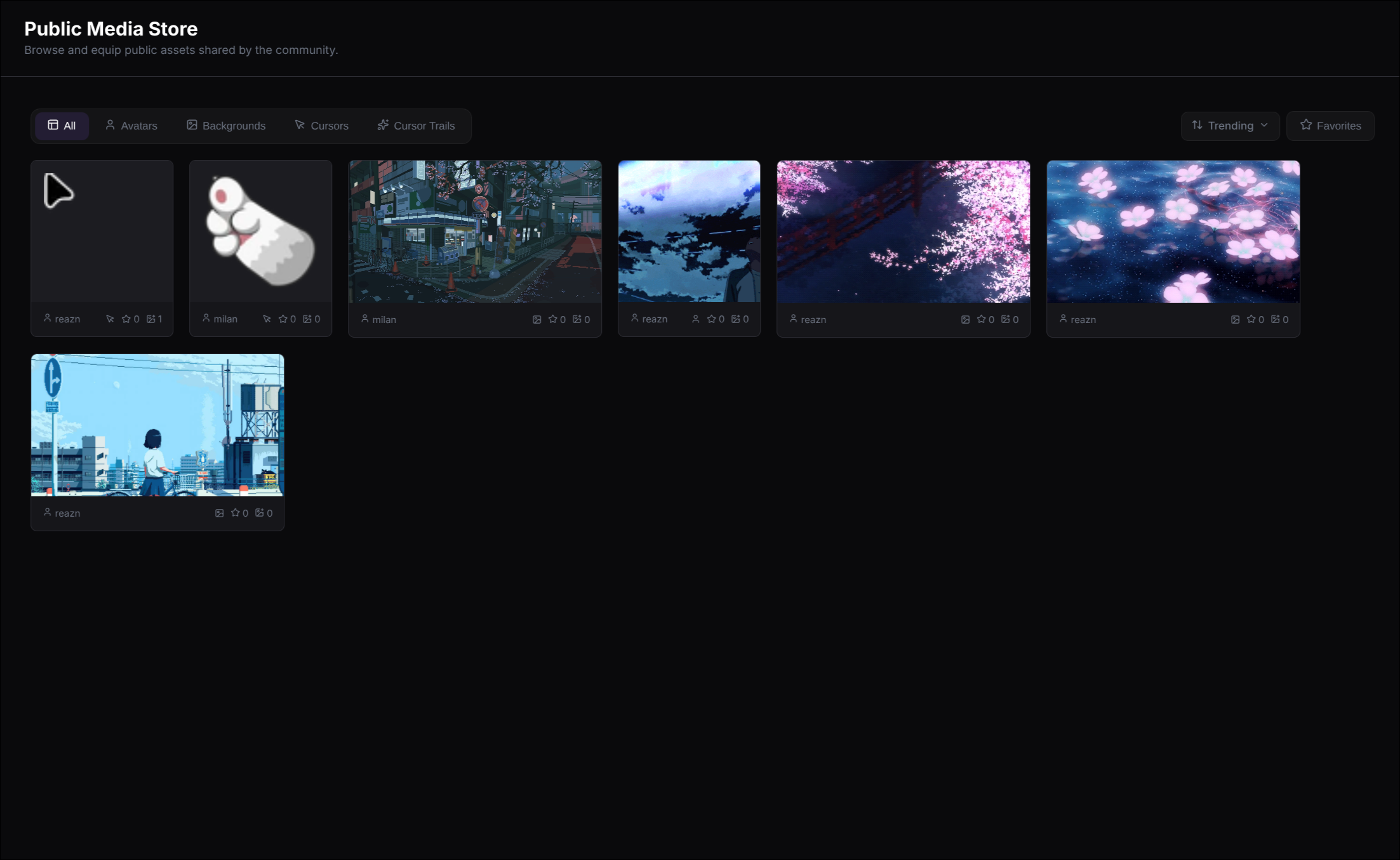
You can preview an asset, favorite it, download it, or equip it directly from the store.
What you can do here
Browse by type
Switch between all assets, avatars, backgrounds, cursors, and cursor trails.
Sort the feed
View what is trending, newest, most used, or most starred.
Save favorites
Star assets you like and filter the page to only show favorites.
Try before using
Preview an asset on your own profile before equipping it.
A simple way to use the store
Pick a category
Use the category tabs to browse a specific type of asset, or stay on All to explore everything together.
Change the sort order
Use the sort menu to switch between Trending, Newest, Most Uses, and Most Stars depending on how you want to browse.
Preview or favorite what you like
Hover an asset to open actions like Preview, Favorite, and Download.
Equip it to your profile
When you find something you want to use, click Equip. The page will apply it to the matching part of your profile.
Browse by asset type
What it is: A public avatar is a profile picture shared by another user.
Where it is used: You can equip it as your main profile avatar.
What it is: A public background is a large image shared for profile styling.
Where it is used: You can equip it as the main background of your profile.
What it is: A public cursor is a custom pointer image shared by another user.
Where it is used: You can equip it for use in your Cursor settings.
What it is: A public cursor trail is a shared visual that follows the cursor when someone moves across your profile.
Where it is used: You can equip it in the Cursor settings as your trail image.
What you see on each asset card
Creator
Shows who uploaded the asset.
Stars
Shows how many people have favorited it.
Uses
Shows how many times the asset has been equipped or used.
Category icon
When browsing **All**, the small icon helps show what type of asset it is.